
spine-construct3 Runtime Documentation
Licensing
See the Spine Runtimes License before integrating the Spine Runtimes into your applications.
Getting Started
spine-construct3 is the official Spine runtime addon for Construct 3. It allows you to load, display, and animate Spine skeletons directly in your Construct 3 projects using the event sheet system.
The spine-construct3 addon is built on top of spine-ts core, the TypeScript implementation of the renderer-agnostic Spine Runtimes core APIs. It supports all Spine features, except tint black.
Note: Ensure that the
major.minorversion of spine-construct3 matches themajor.minorSpine Editor version you are exporting from. See Synchronizing versions for more information.
Installation
Download the latest version of spine-construct3: spine-construct3.zip
To download a specific version, use: https://esotericsoftware.com/files/spine-construct3/c3/spine-construct3-4.y.z.zip, replacing y.z with the desired version number. For example, version 4.3.10 would be: spine-construct3-4.3.10.zip
To install the addon:
- Unzip the downloaded file. It contains the addon file
EsotericSoftware_SpineConstruct3.c3addon. - Open the Construct 3 editor.
- Go to Menu > View > Addon manager.
- Click Install new addon... in the bottom left.
- Select the
.c3addonfile and click Install. - Click Ok and refresh the editor as prompted.
The Spine plugin should now appear in the Addon manager list.
TODO: add images.
Asset Management
Exporting for spine-construct3
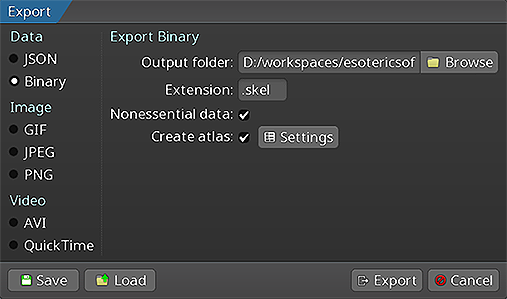
Follow the instructions in the Spine User Guide on how to:
An export of the skeleton data and texture atlas will yield the following files:
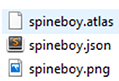
skeleton-name.jsonorskeleton-name.skel, containing your skeleton and animation data, either in the JSON or binary format.skeleton-name.atlas, containing information about the texture atlas.- One or more
.pngfiles, each representing a page in your texture atlas containing the packed images your skeleton uses.
Note: You should prefer binary skeleton exports over JSON exports, as they are smaller in size and faster to load.
Updating Spine Assets
During development, you may frequently update your Spine skeleton data and texture atlas files. You can simply overwrite these source files (.json, .skel, .atlas, .png) by re-exporting from the Spine Editor and re-importing them into your Construct 3 project.
Ensure that the major.minor version of spine-construct3 matches the major.minor Spine Editor version you are exporting from. See Synchronizing versions for more information.
Plugin Overview
The spine-construct3 addon adds a Spine object type to Construct 3, available in the Insert New Object dialog under the General category.
The Spine object is a world instance that can be placed on a layout, positioned, scaled, and rotated. It renders a Spine skeleton and provides Actions, Conditions, and Expressions (ACEs) to control animations, skins, bones, and more through the event sheet.
Properties Panel
When you select a Spine object, the Properties panel displays the following options:
| Property | Description |
|---|---|
| Atlas | The .atlas file exported from Spine. Click to select from your project files. |
| Skeleton | The skeleton data file (.json or .skel) exported from Spine. Binary .skel format is recommended for smaller file size and faster loading. |
| Loader scale | Scale factor applied when loading the skeleton. Useful if you exported at a different scale than intended. Default is 1. |
| Select skin | Opens a dialog to select skins from the skeleton. |
| skin | The default skin to apply. You can specify multiple skins separated by commas. |
| Select animation | Opens a dialog to select an animation from the skeleton. |
| animation | The default animation to play when the object is created. |
| Debug skeleton | When enabled, renders bones and slots for debugging purposes. |
| Enable collision | When enabled, creates a Sprite collision body that follows the skeleton bounds. See Configuring the Object for details. |
Bounds provider (group):
| Property | Description |
|---|---|
| Bounds provider | How the object's bounding box is calculated: Setup pose bounds uses the skeleton's setup pose, Animation/Skin bounds samples the animation frames for more accurate bounds. |
| Position bounds | When enabled, keeps the skeleton in a fixed position while allowing you to adjust the size and position of the bounds by manipulating the object's transform handles. |
| Offset X / Y / Angle | Offset adjustments for the bounding box position and rotation. |
| Offset Scale X / Y | Scale adjustments for the bounding box size. |
| Reset bounds | Resets the bounds using the current configuration while keeping the current scale. |
Actions
Animation
| Action | Parameters | Description |
|---|---|---|
| Set animation | track, animation, loop, additive | Sets an animation on the specified track. The animation starts playing immediately, replacing any current animation on that track. When additive is enabled, timeline values are added to the pose instead of replacing them. |
| Add animation | track, animation, loop, delay, additive | Queues an animation to play after the current animation on the specified track. The delay parameter specifies how long to wait (in seconds) before starting this animation. When additive is enabled, timeline values are added to the pose instead of replacing them. |
| Play | - | Resumes animation playback if it was stopped. |
| Stop | - | Pauses animation playback. The skeleton remains in its current pose. |
| Set time scale | track, timeScale | Sets the time scale multiplier. Use -1 for track to set the global animation state time scale affecting all tracks. Use a specific track index (0, 1, 2, ...) to set the time scale on the current animation of that track only. 1.0 is normal speed, 2.0 is double speed, 0.5 is half speed, 0 to pause. When targeting a track, the time scale affects only the current animation on that track. |
| Set animation time | track, time, units | Sets the current time of the animation on the specified track. Units can be Seconds (absolute time) or Ratio (0.0 to 1.0 representing the animation progress). |
| Set animation mix | from, to, duration | Sets the crossfade duration (in seconds) when transitioning from one animation to another. |
| Set default mix | duration | Sets the default crossfade duration (in seconds) used when transitioning between animations that don't have a specific mix defined. |
| Set empty animation | track, mixDuration | Clears the animation on the specified track by mixing to an empty animation over the specified duration. |
| Add empty animation | track, mixDuration, delay | Queues an empty animation on the specified track, which will clear the animation after the delay. |
| Clear track | track | Immediately clears the animation on the specified track. Use -1 to clear all tracks. |
| Set track alpha | alpha, track | Sets the alpha of an animation track (0.0 to 1.0). Used for blending animations across multiple tracks. |
Skins
| Action | Parameters | Description |
|---|---|---|
| Set skin | skinName | Applies a skin to the skeleton. For multiple skins, provide a comma-separated list (e.g., hair/red,clothes/blue). Use an empty string to clear all skins. |
| Create custom skin | skinName | Creates a new empty custom skin with the specified name. If a custom skin with that name already exists, it is cleared. |
| Add to custom skin | customSkinName, skinToAdd | Adds an existing skin's attachments to a custom skin. The custom skin must be created first. |
| Set custom skin | skinName | Applies a previously created custom skin to the skeleton. |
Attachments & Slots
| Action | Parameters | Description |
|---|---|---|
| Set attachment | slotName, attachmentName | Changes the attachment on a slot. Use an empty string to clear the attachment. |
| Set slot color | slotName, color | Tints a slot with the specified color. Accepts hex colors (#RRGGBB or #RRGGBBAA) or color names. |
| Reset slot colors | slotName | Resets a slot's color to its setup pose value. Leave the slot name empty to reset all slots. |
Skeleton
| Action | Parameters | Description |
|---|---|---|
| Setup pose | target | Resets to the setup pose. Target can be All (bones and slots), Bones, or Slots. |
| Setup bone/slot pose | type, name | Resets a specific bone or slot to its setup pose. |
| Set physics mode | mode | Controls how physics constraints are updated: None (physics disabled), Reset (reset physics to current pose each frame), Update (physics simulated normally), or Pose (apply physics pose without simulation). |
| Set skeleton color | color | Tints the entire skeleton with the specified color. Accepts hex colors (#RRGGBB or #RRGGBBAA) or color names. |
| Mirror | isMirrored | Mirrors the skeleton horizontally when set to true. |
| Flip | isFlipped | Flips the skeleton vertically when set to true. |
Bones
| Action | Parameters | Description |
|---|---|---|
| Set bone pose | boneName, mode, applyMode, x, y, rotation, scaleX, scaleY | Sets a bone's pose. mode specifies the coordinate space: Local (bone-local) or Game (world coordinates). applyMode can be Once (apply for one frame) or Hold (continuously override the animation). Leave parameters as empty string to keep their current values. |
| Release bone hold | boneName, resetToSetup | Releases a held bone pose, allowing the animation to control the bone again. Optionally resets the bone to its setup pose. |
Bone Follower Actions
| Action | Parameters | Description |
|---|---|---|
| Attach instance to bone | uid, boneName, offsetX, offsetY, offsetAngle | Attaches an instance to a bone, making it follow the bone's position and rotation. The instance is specified by its UID. Offsets are applied in the bone's local space. Multiple instances can follow the same bone. |
| Attach object to bone | object, boneName, offsetX, offsetY, offsetAngle | Attaches an instance to a bone, making it follow the bone's position and rotation. Uses the object picker and works with the SOL (Selected Object List). Offsets are applied in the bone's local space. Multiple instances can follow the same bone. |
| Detach object from bone | object, boneName | Detaches picked instances from a bone. Uses the object picker and works with the SOL. |
| Detach all from bone | boneName | Detaches all followers from a bone. |
Interactive Handles
| Action | Parameters | Description |
|---|---|---|
| Add handle | type, name, radius, debug | Adds a draggable handle to a bone or slot. When the user drags within the radius, the bone position updates to follow the pointer. Enable debug to visualize the handle. |
| Remove handle | type, name | Removes a drag handle from a bone or slot. |
Bounds
| Action | Parameters | Description |
|---|---|---|
| Set bounds | x, y, width, height | Sets the bounds of the game object in Spine world coordinates. The skeleton's visual size stays the same (only the bounding area changes). |
| Set bounds for skin/animation | skins, animation | Calculates and sets bounds based on the specified skins and animation. Leave skins empty for the default skin, leave animation empty for setup pose. |
| Set bounds for setup pose | - | Calculates and sets bounds based on the skeleton's setup pose. |
Conditions
Triggers
| Condition | Parameters | Description |
|---|---|---|
| On skeleton loaded | - | Triggered when the skeleton finishes loading and is ready to use. |
| On animation event | event, track, animation | Triggered when an animation event occurs. Event types are: start, interrupt, end, complete, dispose, and event (for custom user events). Use empty string for event or animation to match any value. Use -1 for track to match any track. |
State Checks
| Condition | Parameters | Description |
|---|---|---|
| Is skeleton loaded | - | Returns true if the skeleton has finished loading. |
| Is playing | - | Returns true if the animation is currently playing. |
| Is mirrored | - | Returns true if the skeleton is mirrored horizontally. |
| Is flipped | - | Returns true if the skeleton is flipped vertically. |
| Is animation playing | animationName, trackIndex | Returns true if the specified animation is playing. Use empty string for animationName to match any animation. Use -1 for trackIndex to check all tracks. |
| Is point inside slot | x, y, slotName | Returns true if the point (in world coordinates) is inside the slot's attachment polygon. Useful for hit detection on specific body parts. |
| Is point inside bone radius | x, y, boneName, radius | Returns true if the point (in world coordinates) is within the specified radius (in pixels) of a bone's position. |
Expressions
Bone Queries
| Expression | Parameters | Returns | Description |
|---|---|---|---|
| BoneX | boneName | number | The bone's X position in skeleton space. |
| BoneY | boneName | number | The bone's Y position in skeleton space. |
| BoneWorldX | boneName | number | The bone's X position in game world coordinates. |
| BoneWorldY | boneName | number | The bone's Y position in game world coordinates. |
| BoneRotation | boneName | number | The bone's rotation in degrees (world rotation). |
| BoneLength | boneName | number | The bone's length. |
State Queries
| Expression | Parameters | Returns | Description |
|---|---|---|---|
| CurrentSkin | - | string | The name of the current skin. Returns comma-separated names if multiple skins are active. |
| CurrentAnimation | trackIndex | string | The name of the animation playing on the specified track. Returns empty string if no animation is playing. |
| CurrentAnimationStart | trackIndex | number | The start time of the animation on the specified track. |
| CurrentAnimationEnd | trackIndex | number | The end time of the animation on the specified track. |
| CurrentAnimationLast | trackIndex | number | The last applied time of the animation on the specified track. |
| SlotAttachment | slotName | string | The name of the attachment on the specified slot. Returns empty string if no attachment is set. |
| SlotAttachmentPlaceholder | slotName | string | The skin placeholder name of the attachment on the specified slot, or the attachment name if using the default skin. Returns empty string if no attachment is set. |
| TimeScale | trackIndex | number | The time scale for a specific track, or the global animation state time scale when track is -1. |
| Loop | trackIndex | number | Whether the current animation on the specified track is set to loop (1 = looping, 0 = not looping). |
| BoundsX | - | number | The X offset of the current bounds. |
| BoundsY | - | number | The Y offset of the current bounds. |
| BoundsWidth | - | number | The width of the current bounds. |
| BoundsHeight | - | number | The height of the current bounds. |
Event Data
| Expression | Parameters | Returns | Description |
|---|---|---|---|
| GetEventData | field | any | Retrieves data from the last triggered animation event. Use within an On animation event trigger. |
Valid field values for GetEventData:
| Field | Returns | Description |
|---|---|---|
"float" | number | The event's float value. |
"int" | number | The event's integer value. |
"string" | string | The event's string value. |
"balance" | number | The event's balance value (for audio panning). |
"volume" | number | The event's volume value. |
"audiopath" | string | The event's audio path. |
"event" | string | The name of the event. |
"track" | number | The track index where the event occurred. |
"animation" | string | The name of the animation that triggered the event. |
Adding a Spine Object
Importing Assets
To import Spine assets into a Construct 3 project:
- Right-click the Files folder in the Project panel and select Import files.
- Select all exported files (skeleton, atlas, and images).
TODO: Add image
Creating the Object Type
- In the Project panel, right-click on Object types and select Add new object type.
- Choose Spine from the General category.
- Enter a name for the object type and click Create.
This creates an object type named Spine by default. You can create multiple object types based on the Spine plugin, each representing a different character or animated element in your game (e.g., Player, Enemy, NPC).
TODO: Add image
Adding to Layout
- In the Project panel, expand Object types and drag the Spine object type onto the layout.
Alternatively, you can create an object type and place an instance in one step: double-click on the layout, choose Spine from the General category, and click to place an instance of the newly created object type.
The Spine logo appears as a placeholder until you assign a skeleton.
TODO: Add image
Configuring the Object
Basic Configuration
With the Spine object selected:
- In the Properties panel, click the Atlas property and select your
.atlasfile. - Click the Skeleton property and select your
.jsonor.skelfile.
The skeleton now renders in the editor in its setup pose.
If the setup pose is empty, an error message is displayed. In this case, set a skin that contains visible attachments.
TODO: Add image TODO: Add image of empty setup pose error
Bounds
By default, the bounds are calculated from the setup pose. You can change the Bounds provider property to Animation/Skin bounds to calculate bounds based on the selected skin and animation instead.
If neither option produces the desired bounds, enable the Position bounds property to manually resize, move, and rotate the bounds while keeping the skeleton fixed. To reset the bounds to the current bounds provider settings, click the Reset bounds button.
Collisions
Enabling the Enable collision property creates a Sprite object type named ObjectTypeName_CollisionBody (e.g., Player_CollisionBody). This sprite is not placed in the layout at design time and should not be placed manually; it is created automatically at runtime for each instance of the Spine object type. The collision sprite's size and position automatically match the bounds of its corresponding Spine instance. This sprite object type is shared among all instances of the same Spine object type.
This approach is necessary because Construct 3 does not allow plugins to declare themselves as having collision capabilities. Without this, the collision-related ACEs and the SOL (Selected Object List) API for filtering instances involved in collisions would not be available.
When disabling collision on the last instance that uses it, a prompt asks whether to keep or delete the collision sprite. Deleting it will also remove any ACEs in event sheets that reference it.
See the Properties Panel section for all available configuration options.
Advanced Features
Drag Handles
Drag handles allow users to interactively drag bones or slots with the mouse or touch input. This is useful for creating interactive characters, ragdoll effects, or allowing users to pose characters.
To add a drag handle:
- Use the Add handle action, specifying the type (
BoneorSlot), the bone/slot name, and the interaction radius. - Enable the
debugparameter to visualize the handle area.
When a bone handle is added, clicking and dragging within the specified radius will move the bone to follow the pointer. For slot handles, the clickable area is determined by the slot's attachment polygon instead of a radius.
To remove a handle, use the Remove handle action.
Bone Followers
Bone followers allow you to attach any Construct 3 object instance to a skeleton bone. The attached instance automatically follows the bone's position and rotation each frame. Multiple instances can follow the same bone.
To attach an instance to a bone:
- Use Attach instance to bone to attach by UID (e.g.,
Sprite.UID). - Use Attach object to bone to attach picked instances from conditions (works with SOL).
The offsets (offsetX, offsetY, offsetAngle) are applied in the bone's local space, meaning they rotate with the bone.
To detach instances:
- Use Detach object from bone to detach picked instances.
- Use Detach all from bone to detach all followers from a bone.
The detached instances remain at their current position.
Use cases include attaching weapons, accessories, or effects to character bones.
Bone Pose Override
The Set bone pose action allows you to programmatically control bone positions, rotations, and scales. This can be used for:
- Aiming weapons or eyes at a target
- Procedural animation adjustments
- Blending user input with animations
Two apply modes are available:
- Once: The pose is applied for the current frame only. The animation resumes control on the next frame.
- Hold: The pose is continuously applied every frame, overriding the animation. Use Release bone hold to stop.
Two coordinate modes are available:
- Local: Values are applied directly as the bone's local pose.
- Game: Values are in game world coordinates and are converted to bone-local space.
Leave parameters as empty string to keep their current values. In hold mode, this allows you to override only specific properties (e.g., only rotation) while preserving others.
Runtime Bounds
The bounds configured in the editor may not always fit every animation. For example, a character's idle animation may have smaller bounds than a jump or attack animation.
There are two approaches to adjust bounds at runtime:
- Set bounds for skin/animation: Automatically calculates bounds by stepping through the specified animation frames. This is the easiest approach as the plugin computes the correct values for you.
- Set bounds for setup pose: Resets bounds to the skeleton's setup pose.
- Set bounds: Manually sets bounds using coordinates and size in Spine skeleton world space. These values can be easily derived from within the Spine Editor.
You can use the On animation event condition with the start event to detect when an animation begins, then call the appropriate bounds action. Use the bounds expressions (BoundsX, BoundsY, BoundsWidth, BoundsHeight) to query the current bounds.
Spine Runtimes API
For advanced use cases not covered by the built-in Actions, Conditions, and Expressions, you can access Spine instances and the full spine-core API directly through Construct 3 scripting.
Accessing a Spine Instance
In a script, you can access a Spine instance through the Construct 3 runtime API:
const spineInstance = (runtime.objects.MySpineType.getFirstInstance() as any);
// Access the skeleton and set its color
const skeleton = spineInstance.skeleton;
skeleton.color.set(1, 0, 0, 1);
// Access the animation state and set an animation on track 0
const state = spineInstance.state;
state.setAnimation(0, "jump");
To iterate over multiple instances of the same Spine object type, use getAllInstances():
// Work with each skeleton
}
Key Properties
Each Spine instance exposes these properties:
| Property | Type | Description |
|---|---|---|
skeleton | Skeleton | The Spine skeleton. Use to access bones, slots, skins, and skeleton data. |
state | AnimationState | The animation state. Use to set animations, add listeners, and control playback. Use state.timeScale for speed control. |
isPlaying | boolean | Whether animations are currently updating. |
physicsMode | Physics | The physics update mode (spine.Physics.none, reset, update, or pose). |
isMirrored | boolean | Whether the skeleton is mirrored horizontally. |
isFlipped | boolean | Whether the skeleton is flipped vertically. |
The spine Global Object
The spine object is available globally and contains all exports from spine-construct3.
const spine = (globalThis as any).spine;
spineInstance.physicsMode = spine.Physics.update;
Example: Custom Animation Listener
This example shows how to register callbacks for animation events directly through the API. This is useful when you need more control than the built-in On animation event condition provides.
spineInstance.state.addListener({
start: (entry) => {
console.log(`Started: ${entry.animation.name} on track ${entry.trackIndex}`);
},
complete: (entry) => {
console.log(`Completed: ${entry.animation.name}`);
},
event: (entry, event) => {
console.log(`Event: ${event.data.name}, value: ${event.stringValue}`);
}
});
Example: Procedural Attachment Control
This example shows how to manipulate attachments programmatically. This is useful for dynamically showing or hiding equipment, accessories, or visual effects based on game logic.
// Find a slot and remove its attachment
const slot = skeleton.findSlot("gun");
if (slot) {
slot.pose.attachment = null;
}